PEOPLE INCORPORATED · WINDOWS COMPUTERS
Get your files ready for migration
Complete this guide on your current work computer before handing it to IT. Start early enough to let your files finish uploading.
Signing in alone does not back up every file on your computer. Enable folder backup, check other locations, and verify your files online.
Already using work OneDrive? Confirm the account, then continue with Step 4. Screens may vary slightly by Windows and OneDrive version.
1. Open OneDrive
Select the Windows search bar or press the Windows key, type OneDrive, and open the OneDrive app. If you cannot find it, contact IT.
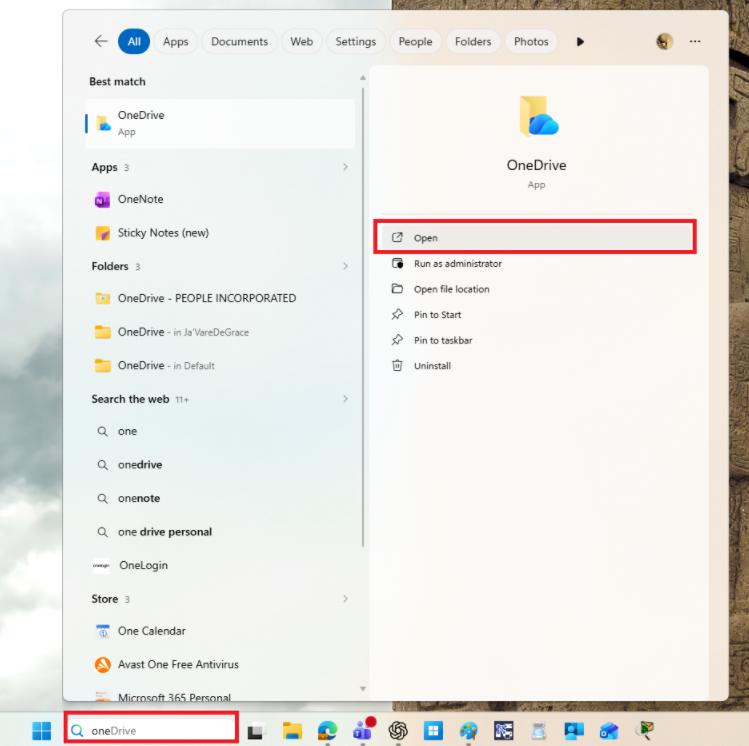
Search for the OneDrive app, then select Open.
2. Sign in with your own work email
Enter your People Incorporated work email address, select Sign in, and complete the usual work sign-in prompts. If asked, choose Work or school account.
If already signed in, check that OneDrive is using your work account. If you only see a personal account or another organization, contact IT for help adding the correct account.
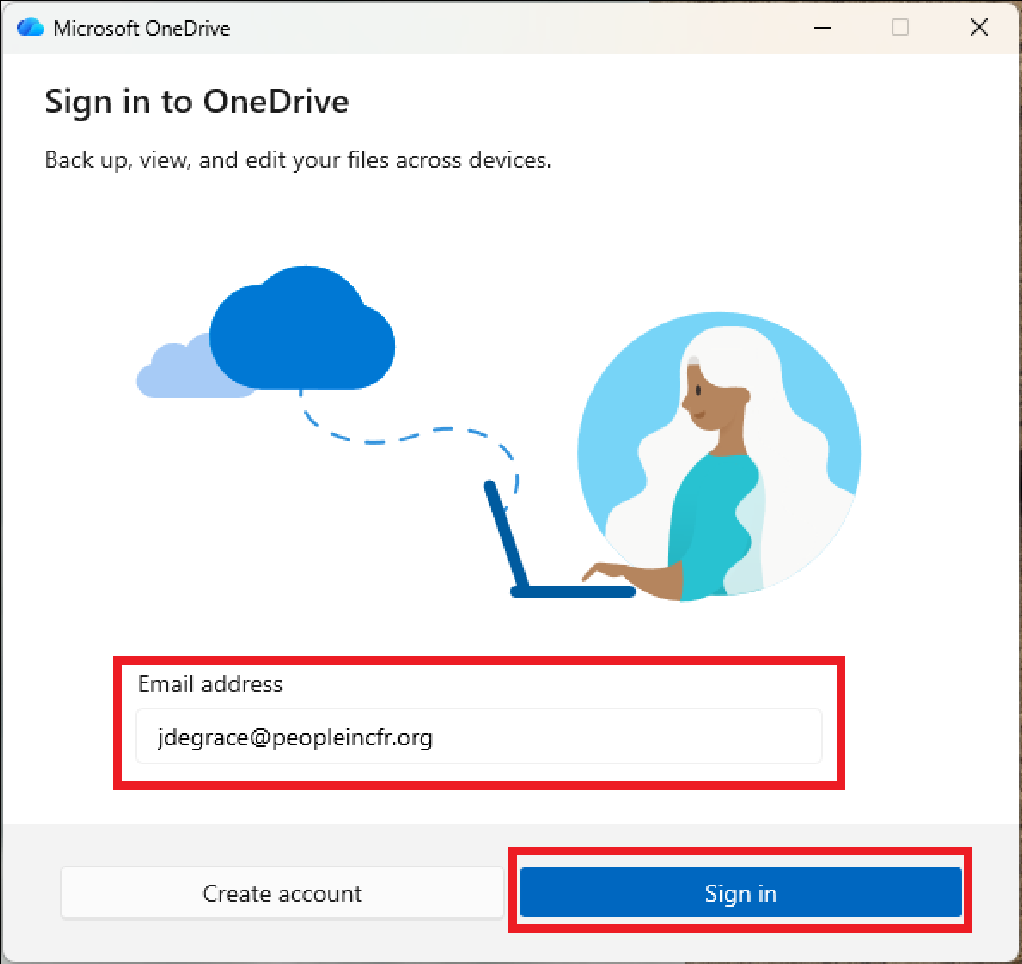
The email shown is an example. Enter your own work email address. Do not create a new account or use a personal account.
3. Confirm your work OneDrive folder
During setup, check that the folder location includes OneDrive - PEOPLE INCORPORATED. Select Next and finish the remaining setup prompts. Your Windows username will be different from the example.
If setup offers folder backup, enable Desktop, Documents, and Pictures. You will check these settings in the next step.
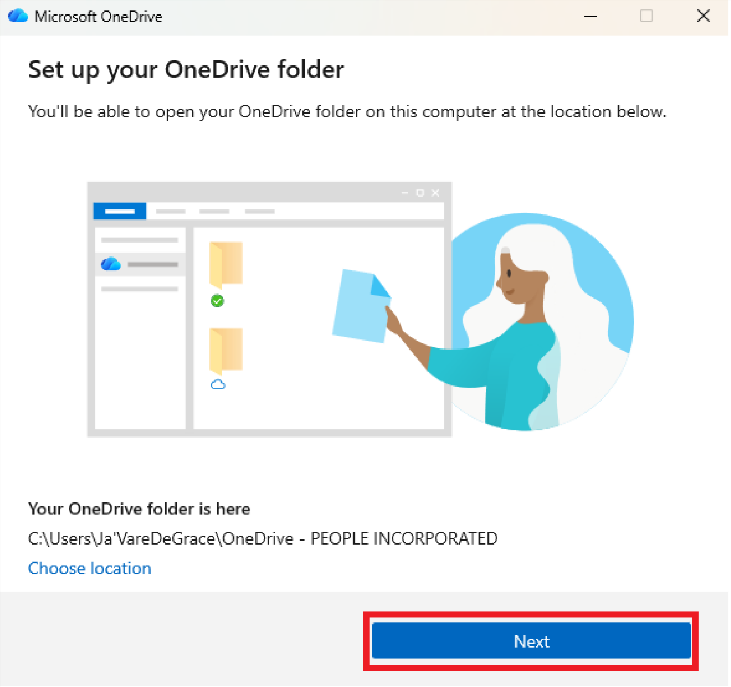
Check the organization name; keep the default work OneDrive location unless IT directs otherwise.
4. Enable Desktop, Documents, and Pictures backup
- Select the work OneDrive cloud icon near the clock. Select the ^ arrow if the icon is hidden.
- Select the gear icon / Help & Settings → Settings.
- Open Sync and backup → Manage backup.
- Turn on Desktop, Documents, and Pictures, then select Save changes or Start backup, depending on your version.
Already backed up? Leave those folders enabled. If a switch is unavailable, a folder is missing, or an error appears, contact IT.
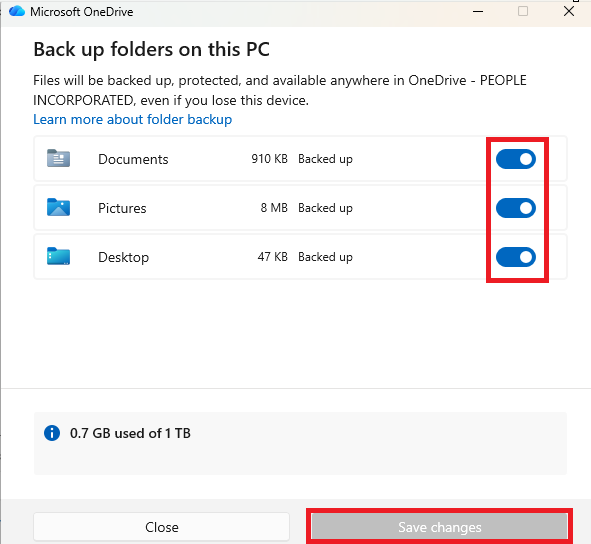
All three switches are on in this example. Save changes may be gray when there are no new changes to save.
5. Check Downloads and other local folders
Downloads is not included in the three folders above. Review Downloads, folders you created elsewhere, and other local drives where you save work.
- Save and close any files you plan to copy.
- Press Windows + E to open File Explorer.
- Open OneDrive - PEOPLE INCORPORATED and create a folder named Migration Backup.
- Go to Downloads or another local folder. Select the work files you need, then press Ctrl + C to copy.
- Open your Migration Backup folder and press Ctrl + V to paste. Repeat for other work files you need to keep.
Copy the actual files, not just shortcuts to them. If a file already exists in the destination and you are unsure which version to keep, ask IT before replacing it.
6. Let syncing finish
Save and close your documents. Keep the computer powered on, awake, and connected to the internet. Check the work OneDrive cloud icon and wait for Up to date or Your files are synced.
If syncing is paused, resume it. If you see a red X, an error, or a storage warning, contact IT. Do not assume the backup is complete while files are still uploading.
7. Open your files online to verify them
- Select View online from the work OneDrive menu. If unavailable, open Microsoft 365 in your browser with your work account and choose OneDrive.
- Confirm the account is your own People Incorporated work account.
- Find Desktop, Documents, Pictures, and your Migration Backup folder, if you created one. Check any other folders containing important work.
- Open several important or recently changed files. Confirm their contents are current.
Missing a file online? Return to the current computer, check where it is saved, and resolve the issue with IT before handoff.
Ready for IT? Check each item
- I am signed in with my own work account.
- Desktop, Documents, and Pictures backup is enabled.
- I checked Downloads and other local folders.
- I copied any additional work files into work OneDrive.
- OneDrive reports that syncing is complete, with no unresolved errors.
- I opened important files online and confirmed their contents.
Keep your original files until IT confirms the migration is complete. Do not delete files from OneDrive to clean up the old computer; deletions can sync to the cloud and other devices.
Need help?
Submit an IT support ticket if sign-in, folder backup, or syncing fails, or if you cannot find your files online. Include the error message or a screenshot and the step where you got stuck.
Folder-backup steps checked November 6, 2026 against Microsoft Support: Back up your folders with OneDrive.
Was this article helpful?
That’s Great!
Thank you for your feedback
Sorry! We couldn't be helpful
Thank you for your feedback
Feedback sent
We appreciate your effort and will try to fix the article